

Table of Contents
- Why Walking During Video Calls Works for Remote Professionals
- Walking Meeting Etiquette: What Your Colleagues Need to Know
- How to Manage Background Noise on Video Calls
- Best Camera Stabilizers for Mobile Video
- Technical Setup for Stable Video While Walking
- Safety and Environmental Awareness While on Video
- Meeting Types Suitable for Walking
- Ergonomic Hardware Setups for Mobile Video
Last Updated: August 16, 2026
Why Walking During Video Calls Works for Remote Professionals
Walking during video calls integrates movement into your workday without sacrificing focus or meeting quality. Remote work often locks professionals into back-to-back video calls with minimal movement, creating a sedentary trap. Walking breaks this cycle by increasing blood flow and oxygen to the brain, sharpening focus during collaborative discussions while boosting daily step counts.
For professionals in small apartments or shared housing, walking during video calls offers a practical solution to limited office space. A compact, quiet solution like the portable under desk treadmill from Wild Bloom allows you to walk while managing video calls without disturbing neighbors or household members. The no-assembly design and quiet motor below 45 dB mean you can set it up in minutes and start integrating movement into your routine immediately.

Walking Meeting Etiquette: What Your Colleagues Need to Know
Before you start walking during video calls, set expectations with your colleagues. A simple message in the meeting invite or a quick verbal note, "I'll be walking during this call to stay active", prevents awkward surprises and shows professionalism.
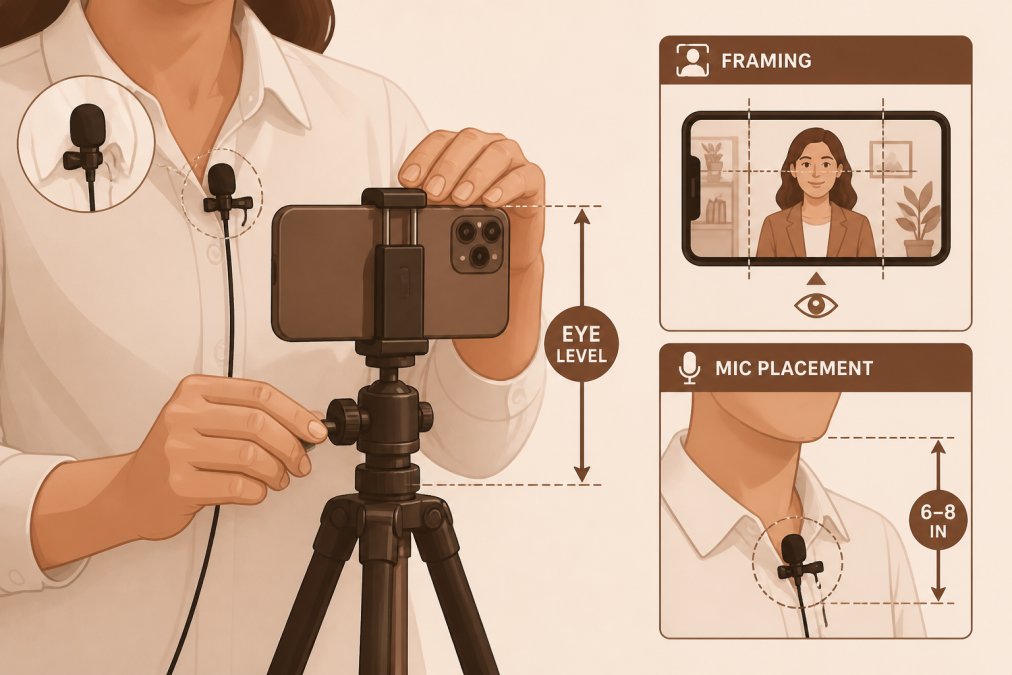
One-on-one sync calls are ideal for walking; formal presentations or client calls where you're the primary speaker require more caution. Status updates, brainstorming sessions, and collaborative planning discussions work well with walking. Keep your camera positioned at eye level and frame yourself from the shoulders up to maintain professional appearance. Avoid pacing side-to-side, which creates visual distraction for other participants.
How to Manage Background Noise on Video Calls
Background noise is the primary concern for professionals considering walking during video calls. Position your microphone away from the treadmill belt and motor. An external microphone dramatically improves audio quality during mobile video conferencing. Lavalier microphones or headset mics positioned near your mouth capture your voice clearly while minimizing motor noise and footstep sounds.
Place your treadmill on a mat or carpeted surface to reduce impact noise. Close windows and doors to minimize external sounds. Enable noise cancellation features in your video conferencing platform before your call. Most modern video calling applications include options to suppress background noise or echo.
A quiet motor below 45 dB is approximately the volume of a normal conversation in a quiet room. From the listener's perspective on a video call, it's barely perceptible, especially with proper microphone positioning and noise management practices in place.
Best Camera Stabilizers for Mobile Video
Camera stability becomes critical when you're walking during video calls. Movement without stabilization creates a shaky, unprofessional appearance that distracts meeting participants.
For walking during video calls, consider these stabilizer options:
- Gimbal stabilizers: Electronic gimbals use motors to counteract movement, producing smooth video even while walking.
- Mechanical phone stabilizers: Handheld stabilizers use counterweights and springs to absorb movement. They're lighter and cheaper than gimbals but require more technique to use effectively.
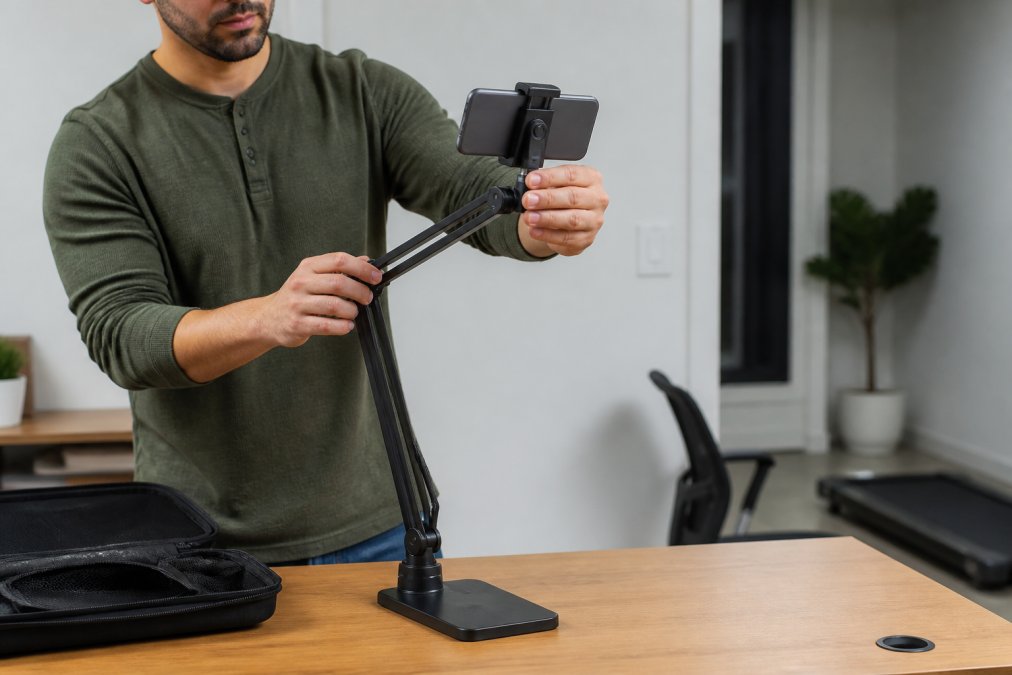
- Desk-mounted arms: Flexible gooseneck arms or C-clamps secure your phone at eye level, keeping it stable during walking sessions on a treadmill.
- Phone harnesses: Chest or shoulder harnesses position your phone hands-free while you walk, though they require practice to frame correctly.
Test your stabilizer setup before important meetings. Walk at your normal pace and check the video feed on a separate device. The goal is smooth, centered video that doesn't distract from your words.
Technical Setup for Stable Video While Walking
Camera Angle and Framing
Position your camera slightly above eye level for a professional appearance. Avoid shooting from below, which torts your face and makes movement more noticeable. When walking during video calls, keep your movements steady and centered in the frame. Frame yourself from the shoulders up, leaving some headroom above.
Bandwidth and Data Management
Walking during video calls on mobile devices requires sufficient bandwidth. Video streaming consumes roughly 2.5 to 4 Mbps for HD quality. Connect to a stable Wi-Fi network whenever possible. If you must use mobile data, switch to a lower video quality setting in your video conferencing app to reduce bandwidth consumption.
HD video calls consume approximately 540 MB per hour. For professionals making multiple calls daily, this adds up quickly. Use Wi-Fi for all video calls when possible, or lower video quality settings to reduce data usage.
Battery Life Considerations
Walking during video calls drains device battery faster than stationary calls. A typical smartphone loses 10-15% battery per hour during video calls. A 10,000 mAh power bank provides 1-2 full charges for most smartphones, weighing less than a pound.
Reduce battery drain by lowering screen brightness during calls, closing background apps, and disabling features like location services. These adjustments extend battery life by 20-30% without noticeably affecting call quality.
Safety and Environmental Awareness While on Video
Walking during video calls requires environmental awareness. Clear your walking path before starting a call. Remove cables, furniture, and other tripping hazards. If you're walking on a treadmill, ensure the area around it is clear. Avoid walking near stairs, windows, or edges where a stumble could cause injury.
In shared housing, walking during video calls affects neighbors. A quiet motor below 45 dB minimizes disturbance, but timing matters. Avoid walking calls during early morning or late evening when others are sleeping.
Meeting Types Suitable for Walking
One-on-one sync calls are ideal for walking. These informal meetings focus on updates and quick discussions. Brainstorming and collaborative planning sessions work well with walking, as movement enhances creative thinking. Status update meetings and routine check-ins are perfect for walking since they typically involve listening and brief updates.
Avoid walking during presentations, client calls, formal meetings with senior leadership, or situations where you're the primary speaker. Internal team meetings where you're a participant rather than the presenter often work well for walking.
Ergonomic Hardware Setups for Mobile Video
Mount your phone or tablet at eye level using a stabilizer or tripod. This prevents neck strain from looking down at a handheld device. Your eyes should align with the camera naturally, without tilting your head up or down.
A quality lavalier microphone clips to your shirt or collar, positioning the mic near your mouth while keeping it away from treadmill noise. Wireless options offer freedom of movement without cable management hassles.
Headphones or earbuds allow you to hear other participants clearly without holding your device to your ear. Over-ear headphones provide comfort during longer calls, while earbuds offer minimal weight and distraction.
If you're walking during calls at a dedicated workspace, position your treadmill so you can walk naturally without reaching or straining to see your device. A compact, foldable treadmill like the Wild Bloom portable under desk model fits easily into home office spaces and provides the quiet, stable walking surface needed for professional video calls.
Wear supportive shoes with cushioning rather than sandals or flat shoes. Walk upright with shoulders relaxed, not hunched forward toward your device. This posture looks more confident on video and prevents back and neck strain.
Walking during video calls transforms remote work by integrating movement into your professional day without sacrificing productivity or meeting quality. The real barrier isn't technical, it's permission. Most colleagues appreciate the transparency and may adopt the practice themselves.
Begin with one-on-one calls or team meetings where you feel comfortable, build confidence in your setup, and expand from there. A dedicated walking solution like the Wild Bloom portable under desk treadmill removes friction from the process. Its quiet motor, no-assembly design, and compact footprint mean you can set up in minutes and start walking during calls today. For remote professionals seeking to increase daily steps without disrupting work focus, this approach delivers immediate, measurable results.
Frequently Asked Questions
Is it professional to walk during a video call?
Yes, when done thoughtfully. Walking during video calls is increasingly accepted in remote work environments, especially for one-on-one meetings, brainstorming sessions, or status updates. The key is setting expectations upfront with participants and maintaining professionalism through stable camera work and clear audio. Avoid walking during formal presentations, client pitches, or meetings where you're the primary speaker. Many professionals find that a brief mention, 'I hope you don't mind if I walk during this call', eliminates any awkwardness and often receives positive responses.
How do I keep my camera steady while walking during a meeting?
Use a mobile phone tripod or stabilizer mount positioned at eye level. Keep your movements slow and deliberate to minimize camera jitter. If using a handheld approach, brace your phone against your body or use a chest mount. Ensure adequate lighting from the front to maintain clear visibility. Test your setup before the call to confirm the camera captures your face clearly even when you're in motion. A phone stabilizer with a counterweight helps absorb minor movement from walking.
What equipment do I need for walking during video meetings?
Start with a mobile phone tripod or stabilizer (under $50 for quality options), an external microphone if your phone's mic picks up motor noise, and a portable under desk treadmill like the Wild Bloom portable treadmill ($149.99) to stay in one controlled space while walking. Ensure your phone has sufficient battery life, most phones last 4-6 hours on a video call. Consider a wireless earbud or headset for hands-free communication. Test your internet connection to confirm bandwidth supports video without lag.
Can a quiet treadmill motor still be picked up by my microphone during calls?
Yes, but the right setup minimizes this. The Wild Bloom portable treadmill operates below 45 dB, which is quieter than most office conversations. To further reduce motor noise pickup, use an external microphone positioned closer to your mouth than to the treadmill, enable noise cancellation in your video conferencing software, and test your audio levels before important calls. Placing the treadmill on a rubber mat absorbs vibrations. Many users find that positioning your microphone 6-8 inches from your mouth effectively prioritizes your voice over background motor sound.
This article was written using GrandRanker